

Barry’s X now allows you to customize your own music experience while you work out in the digital Red Room.
We have released exciting new audio features for Barry’s X.
- Enhanced audio controls
- Play Barry’s Radio or choose your own music
As part of this feature release, we’re making some updates to our VOD catalog. Please expect to see many of your favorite videos added back to the library in the coming days.


FAQ
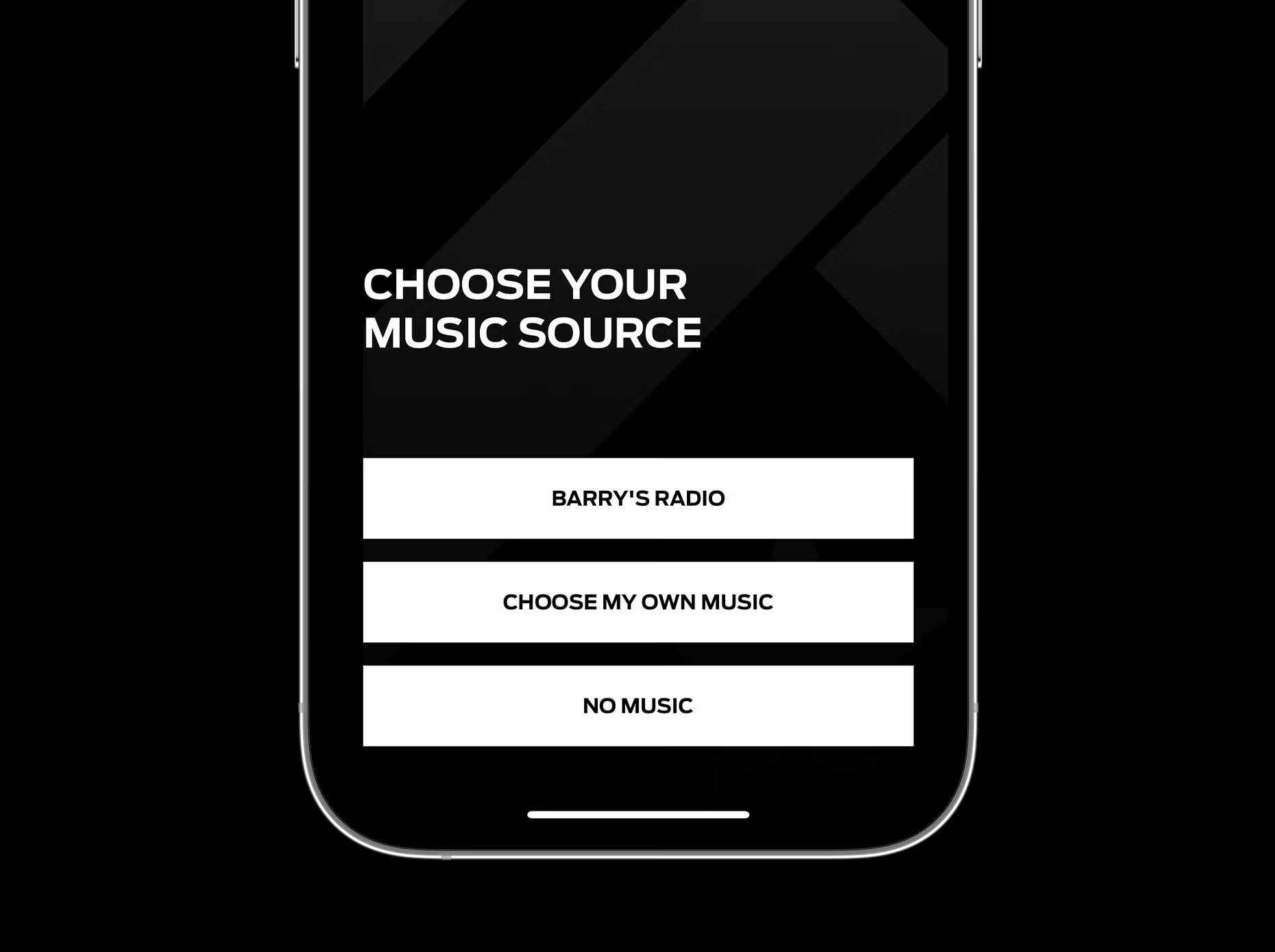
The white button next to “start class” allows you to seamlessly switch music. Once inside the music settings select the music note with the gear icon to change between Spotify, Apple, Barry’s Radio or, No music.
If using Barry's radio, leave the class to open the music option and begin playing before going back to class. If using your own music, swipe up to natively go to your music app and begin playing and swipe up to come back to Barry's X and your class.
To switch to a different music source while in a live class, you will have to leave the red room switch the source and then hop back into class.
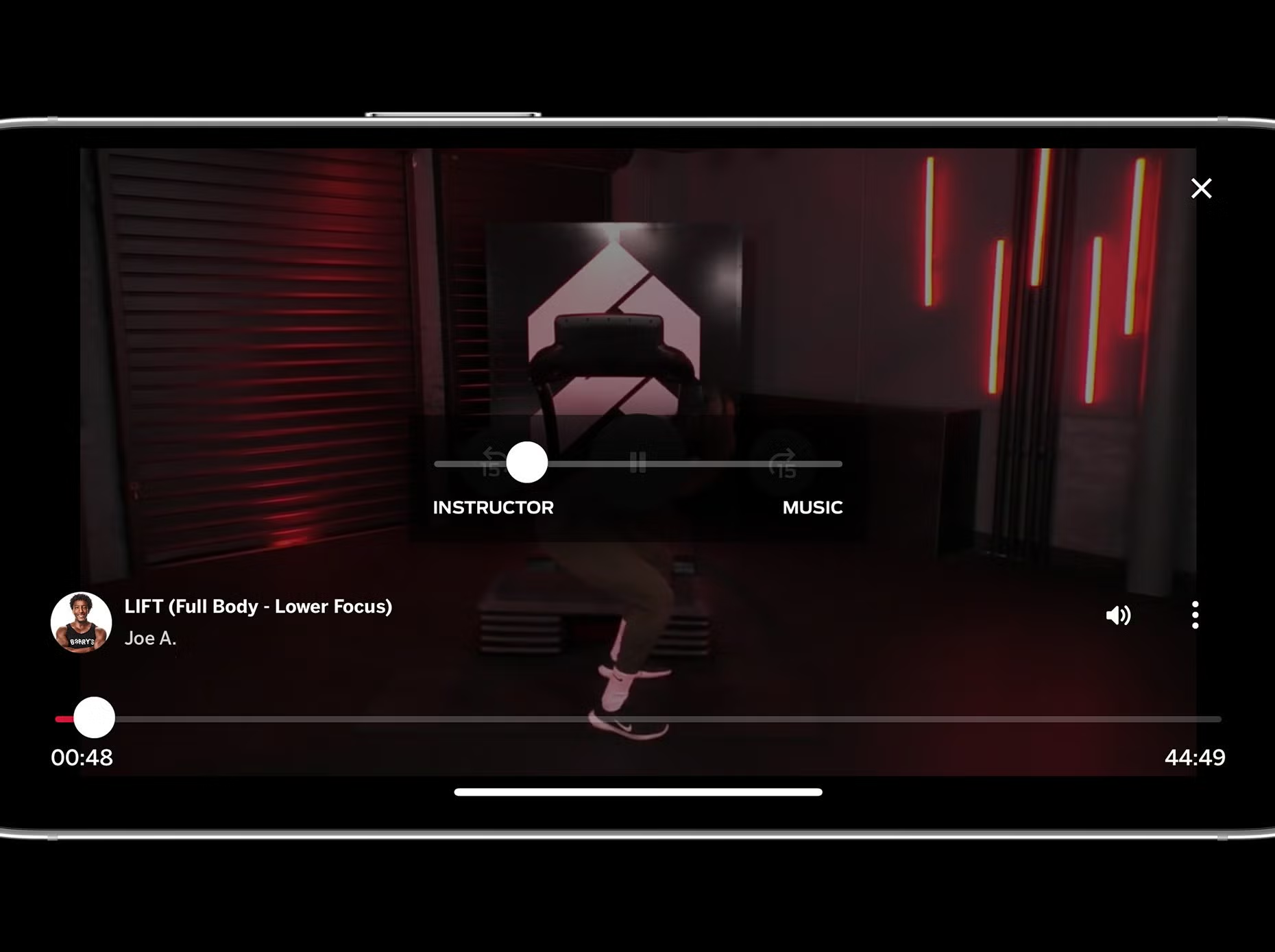
Yes, you can adjust your sound while taking a VOD class using our new feature “dual audio”. To locate dual audio click the sound icon while in a VOD class and adjust either the instructor or music. If you are using Spotify or Apple music this will adjust the instructor audio. You can adjust the music volume by switching to their app.
When watching VOD click on the ellipsis menu and select the airplay icon.
While on the music source selection page, click the Spotify icon, from there it will redirect you to the Spotify app. Simply select your preferred playlist and navigate back to the Barry's X app.
While on the Barry's X app click the music source selection page, which is the button located next to the "start class" button then click the apple music icon. This will redirect you to Apple Music from there select your preferred playlist and navigate back to the Barry's X app.
More questions covered in the Barry's X FAQ or you can always reach out to xperts@barrys.com for additional guidance. https://www.barrys.com/barrys-x-faq/

